
From Figma mockup to website: what to get right first
How well a design survives the trip to a real website is mostly decided in the Figma file, before anyone writes a line of code. Here are the ten things worth checking first.
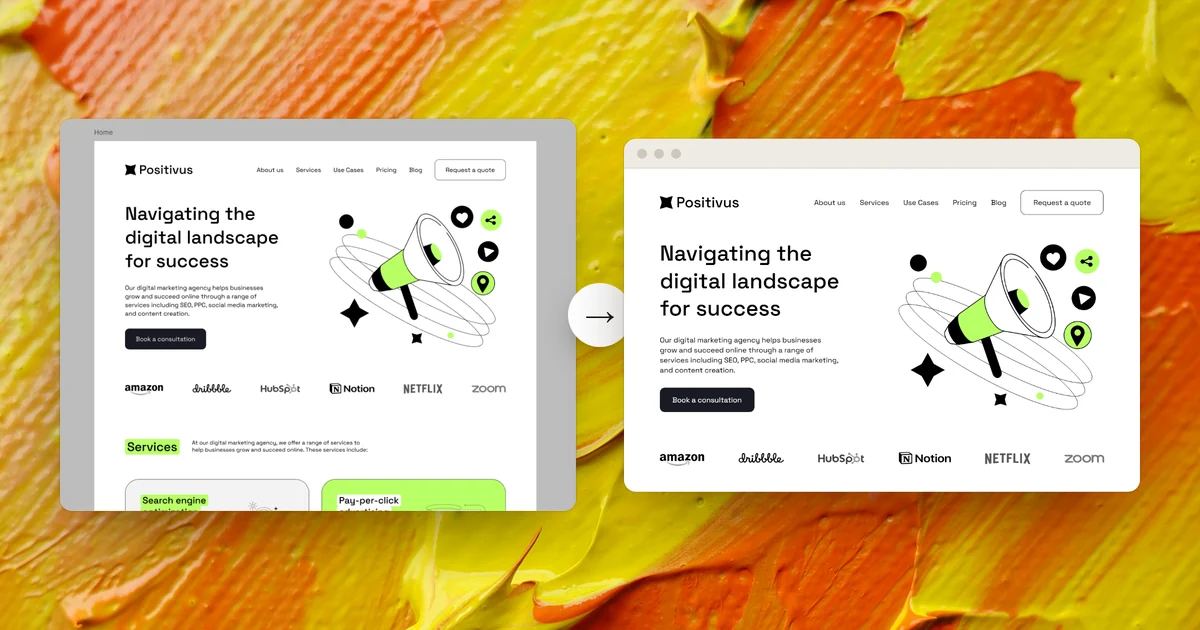
A Figma mockup and a website are different things. The mockup is a picture of a page at one width, drawn with every font you have installed and every image exactly where you dropped it. A website has to rebuild that picture in a browser, at every screen size, using only the fonts and files the browser can load.
Most of what goes wrong between the two isn’t a coding problem. It’s decided in the Figma file. This guide covers the ten things worth getting right before your design leaves Figma, whoever builds it: a developer, an agency, or a tool. None of them ask you to design differently. They’re about making what you meant visible in the file, so nobody has to guess.
1Give every page its own frame, at its real width
A browser builds a page inside a box with a width. In Figma, that box is a top-level frame. Put each page of the site in its own frame, sized to the width you designed for. 1440px is the common desktop choice; 1280px or 1920px are fine too, if that’s what you designed at. Loose layers on the canvas, or one page assembled from several frames stacked on top of each other, leave the builder guessing where the page starts and ends.
Figma frames clip their content, and that’s worth leaving on. Anything hanging outside the frame is invisible in your design, so it should be invisible on the site too. If a shape bleeds off the edge on purpose, let the frame crop it rather than resizing the shape to fit.
Keep explorations, old versions and component sheets on a separate Figma page. A page in the file with one frame per website page, named after the page (Home, Pricing, About), is the clearest instruction you can give anyone.
2Draw the mobile frame, not just the desktop one
A desktop frame tells a builder what the page looks like at 1440px. It says nothing about 390px. Without a mobile design, someone else decides how your three-column section stacks, what happens to the navigation and how big the headline is on a phone. Developers decide that differently from designers, and tools decide it differently again.
If you can, draw a mobile frame for every page at 390px, the width of a typical modern phone. Use the same words in the same order as the desktop frame: that’s how a person or a tool matches each mobile section to its desktop twin, by its copy rather than its position.
You don’t need to design every breakpoint. Desktop and mobile are enough for most marketing pages; the widths in between (tablets, small laptops) are where a good build flows from one to the other. If there’s no time for a full mobile design, draw at least the parts that change most: the navigation and its open menu, the hero, and any wide rows of cards.
3Use auto layout where things line up
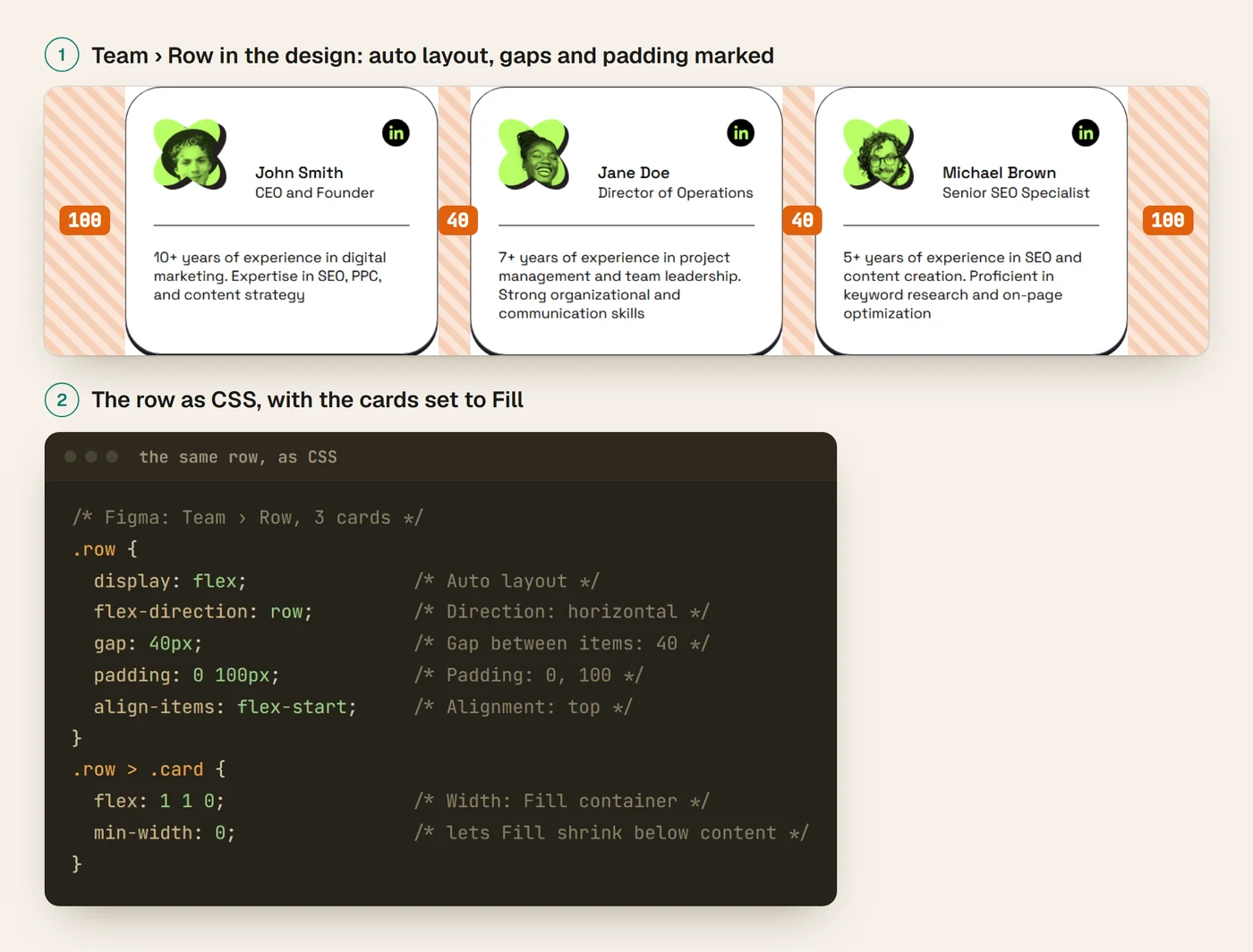
Auto layout is the closest thing Figma has to the way a browser lays out a page. A row of cards with auto layout says: these sit side by side, this far apart, and this is how they behave when the space changes. The same row drawn as loose rectangles only says where each card happened to be at 1440px.
Use it for anything that lines up: navigation links, button rows, card grids, lists, and the stack of headline, paragraph and button in a hero. Set the gap instead of nudging items by eye, and choose each item’s resizing on purpose:
- Hug for things that should be as big as their content: buttons, tags, labels.
- Fill for things that should stretch with their container: columns, text blocks, full-width bands.
- Fixed only where the size really is fixed: an icon, an avatar, a logo.
Keep absolute positioning for things that genuinely overlap, like a badge on the corner of a photo or a shape behind a heading. Overlaps are fine. They just shouldn’t be how ordinary rows are built.
4Use fonts the web can load
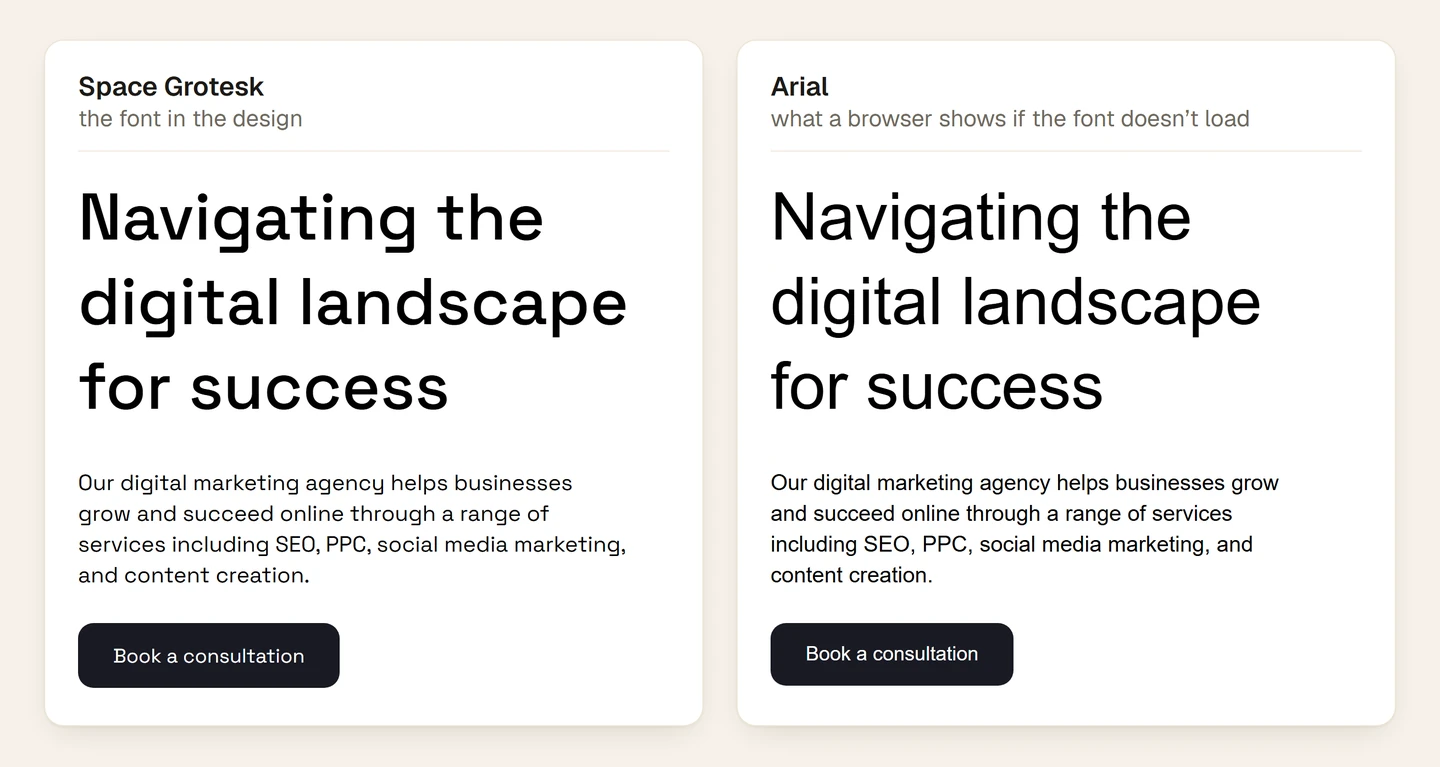
In Figma, any font installed on your computer works. On a website, a font only works if the browser can download it. When it can’t, the browser quietly falls back to something else, and every line break, heading size and button width shifts with it. A substituted font is the most common reason a built page “doesn’t look like the design”.
Before you commit to a typeface, check three things:
- Is it available as a web font? Google Fonts are free to use on the web. Adobe Fonts work through a web project in your Adobe account. Fontshare and many foundries sell web licences.
- Does your licence cover the web? A desktop licence for a commercial font usually doesn’t; web use is often a separate licence, priced by traffic.
- Do you have every weight you used? If a heading uses SemiBold 600 and the web kit only has Regular and Bold, the browser will fake the weight or use the nearest one.
And keep text as text. Text converted to outlines looks identical in Figma, but on a website it can’t be selected, translated, read aloud by a screen reader or found by Google.
5Make text real text, written for the page
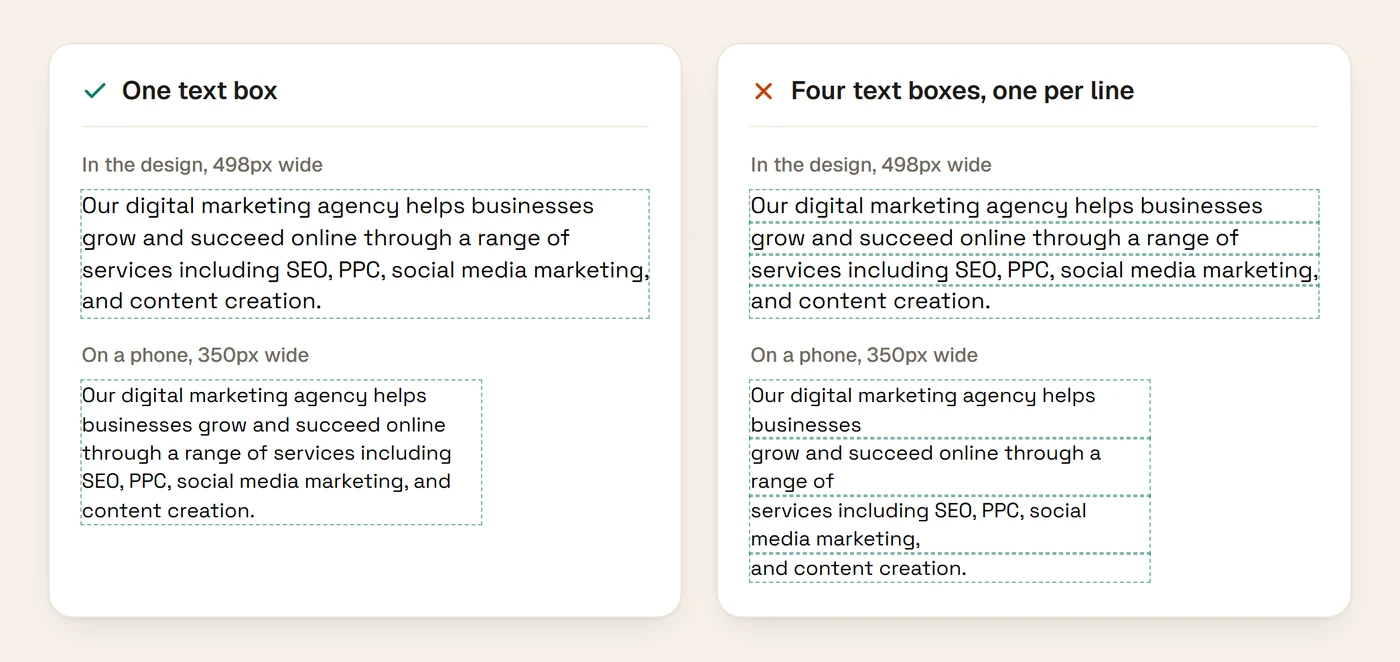
Builders read text layers as content. One paragraph in one text box becomes one paragraph on the site. A paragraph split into one text box per line, so the lines break where you wanted, becomes a stack of fragments, and the breaks are wrong at every other width.
- Use one text box per paragraph, heading or list, and let it wrap. Press Return only where the break is part of the design.
- Use Figma’s bulleted and numbered lists for lists, rather than typing a dash and a space.
- Set line height deliberately, in pixels or per cent. Figma’s “Auto” line height depends on the font, which makes it easy to get wrong when the design is rebuilt.
- Use the real words. Lorem ipsum hides how long a headline really is, and real copy is what shows whether a layout survives a phone screen.
- Decide where every button and link goes, and write it down in a comment or a note beside the frame.
6Prepare images and icons for the browser
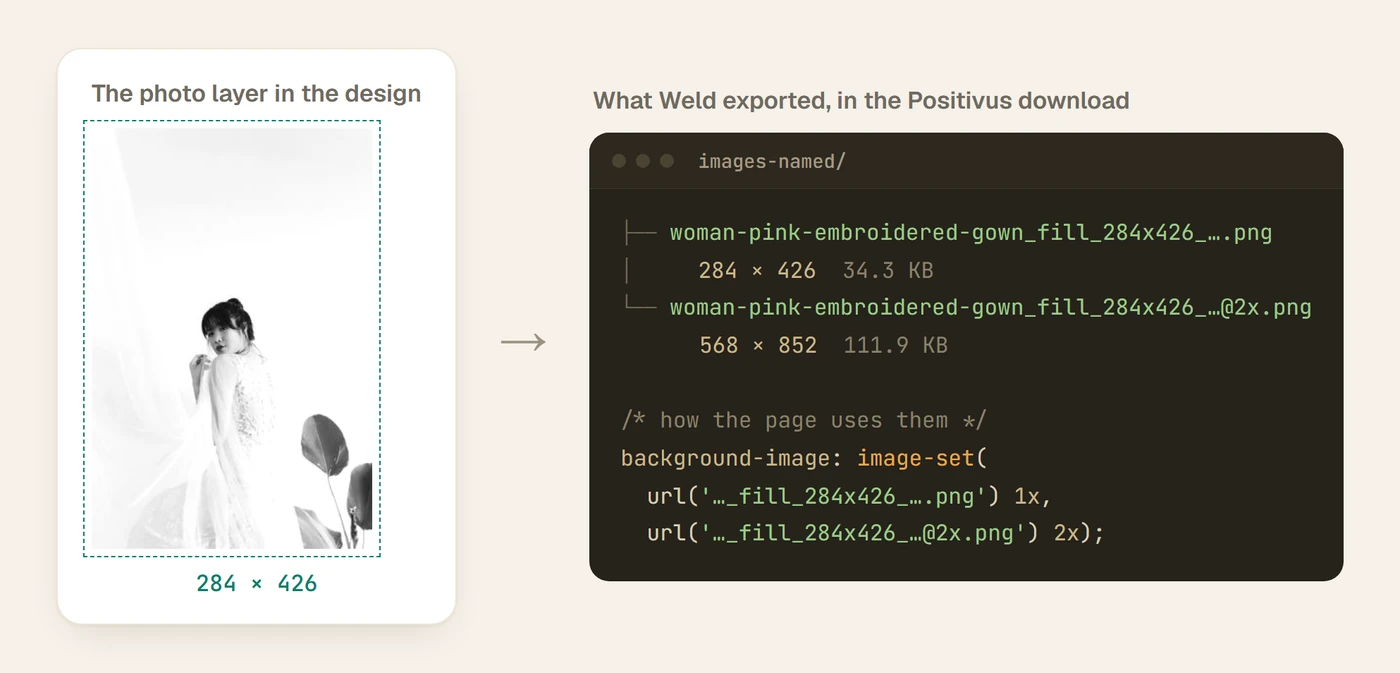
Images are where a design file and a website differ most. In Figma, a photo is a fill on a frame, cropped however you dragged it. On a website it’s a file that has to be exported, sized and cropped the same way.
- Crop in the frame. Position each photo inside its frame exactly as you want it shown. The visible part is what should reach the site.
- Use big enough originals. High-density screens draw images at twice their size, so a 600px-wide image slot needs a source at least 1200px wide to stay sharp.
- Keep icons and illustrations as vectors. A vector icon exports as a small, sharp SVG. A flattened PNG of the same icon is heavier and blurs on high-density screens.
- Use masks for shapes. A photo masked to a circle in Figma stays editable; a photo cut into a circle in another app is stuck that way.
- Know which images mean something. A product photo needs a description for screen readers; a decorative blob doesn’t.
7Use styles and components consistently
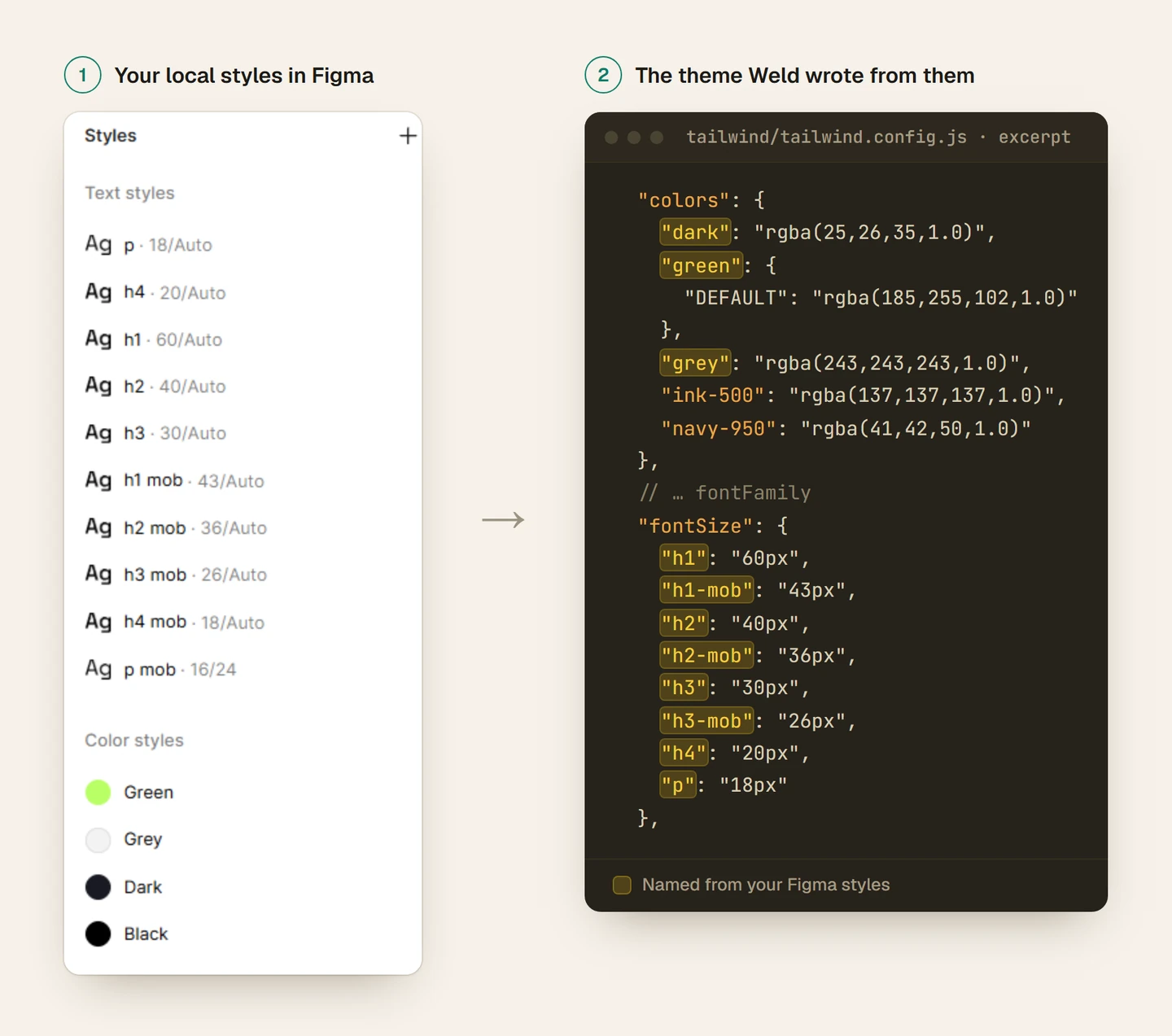
Colour styles, text styles and components are how a design says “these are the same thing”. A builder can turn that into code that says the same: one colour used everywhere, one heading style, one button. Without them, five nearly identical greys and three slightly different heading sizes become five colours and three styles in the code, and someone has to tidy them up later.
Create colour and text styles for the values you reuse and give them plain names (Dark, Brand Green, H1, Body). Use components for anything repeated: buttons, cards, the navigation, the footer. When you need a variation, use a variant or an override rather than detaching the component.
This is also where small inconsistencies surface. If two buttons look the same but one is 47px tall and the other 48px, a faithful website reproduces both.
8Clean up before you export
Every design file collects leftovers. You don’t see them because you know to ignore them. Whoever builds the page doesn’t.
- Hidden layers you meant to delete.
- Layout grids drawn as rectangles instead of set up as Figma layout grids. A real layout grid is a guide; a drawn one is twelve pink rectangles.
- Stray elements outside the frames or parked behind other layers.
- Duplicate frames: Home, Home copy, Home final, Home final v2. Keep the real one on the page.
- Empty groups and frames left over from rearranging.
Ten minutes of tidying saves a developer an hour of questions, and stops a tool building something you didn’t mean.
9Draw the moving parts
A mockup is a still picture, but parts of a website move. If the design shows only one state, the builder has to invent the others.
- Mobile navigation. Draw the menu button and the open menu. It’s the first thing a phone visitor touches.
- Accordions and FAQs. Show one item open, so the answer’s styling is designed rather than guessed.
- Carousels. Draw the dots or arrows, and enough slides to show how they repeat.
- Hover and focus states for buttons and links, if they change.
- Forms. Draw an error and a success message, not just the empty form.
Use variants or prototype connections, or simply place the extra states beside the frame with a label. What matters is that they exist somewhere a builder will look.
10Export the .fig file
However the site gets built, it starts from your file. If it’s going to a developer, an agency or a tool that reads files, send the .fig itself.
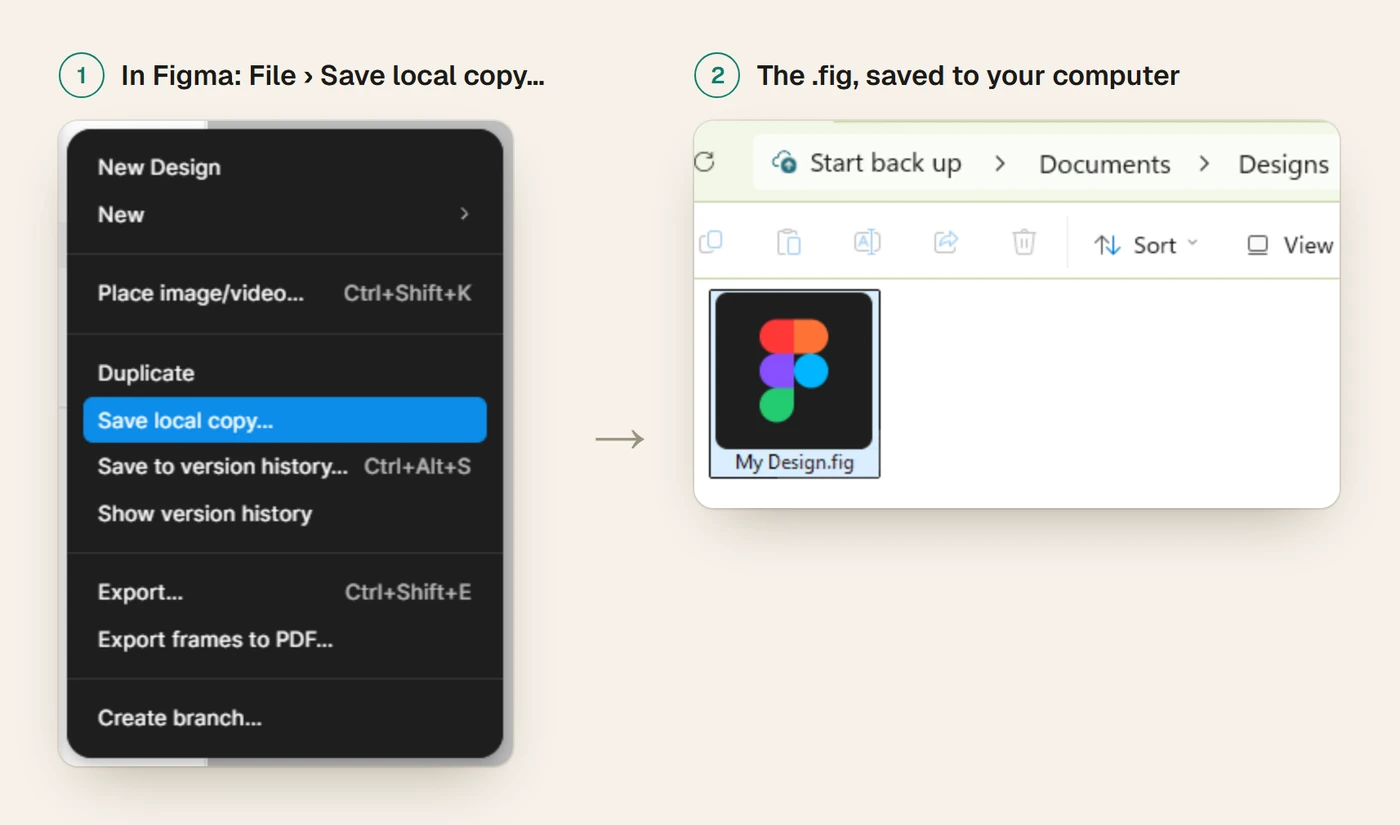
In Figma, open the file and choose File → Save local copy. Figma downloads a .fig holding every page, frame, component and image in the file. Anyone with view access can do this, unless the file’s owner, on a paid plan, has turned off copying and exporting for viewers.
Send it with a short note: which frames are the pages, which mobile frame belongs to which desktop frame, and where the links go. It answers the first questions before they’re asked.
The checklist
Run through this before the file leaves Figma.
- Every page is its own top-level frame, at the width you designed.
- Each page has a 390px mobile frame with the same copy as its desktop frame.
- Rows, stacks and grids use auto layout, with gaps set rather than nudged.
- Every font is a web font, licensed for the web, in every weight you used.
- Each paragraph is one text box, lists are real lists, and the copy is real.
- Photos are cropped in their frames and big enough for 2x screens; icons are vectors.
- Repeated colours and type use styles; repeated elements use components.
- Hidden layers, drawn grids, stray elements and duplicate frames are gone.
- The mobile menu, accordions, carousels and form messages are drawn.
- You’ve saved a local copy (.fig) and noted which frames are the pages.
Questions
Do I need auto layout everywhere?
No. Use it where things line up in rows, stacks and grids, which is most of a marketing page. Overlapping decoration, badges and background shapes are better left absolutely positioned. A file that’s mostly auto layout with a few free elements is normal, and builds well.
What width should my desktop frame be?
The width you designed at. 1440px is the most common choice for desktop and 390px for mobile. Consistency matters more than the number: every desktop page at the same width, every mobile page at the same width.
Can a Figma design without a mobile version become a responsive website?
Yes. A good build will still make the page work on a phone, but the phone layout becomes the builder’s decision rather than yours. If how it looks on a phone matters, and it usually does, a mobile frame is the cheapest way to control it.
Does any of this matter if a developer builds the site?
Yes. Everything here makes the design’s intent visible in the file. A developer benefits as much as a tool does, and you’ll spend less time answering questions and correcting the build.